
Keep the following in mind as you create your Peer Review Groups.
- You can create Default Peer Review Groups which will be used for all prompts in which you enable peer review, or you can create Prompt-Specific Groups as you assign prompts. To create default groups, go to the Reviews tab. To create prompt-specific groups, go to the Writing Prompt Library.
- In either area, you can choose to have the system randomly create the groups based on size or you can create your own groups.
Create Randomized Default Groups
1. Go to the Reviews tab. Click on Default Peer Review Groups. Click Randomize. This will populate the groups in the table as seen below. (Note: You can return to the Reviews tab to see your existing groups.)

2. Choose a minimum group size in the drop-down menu. Then click Create Groups. Based on group size only, the system will randomly create your groups and assign students in the course to those peer review groups.

Create Customized Default Groups
1. Click Add Group.

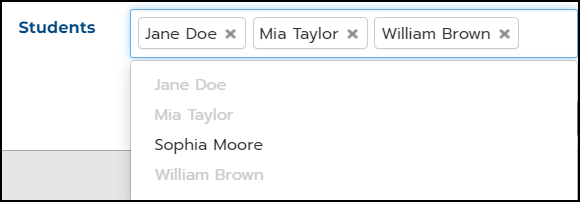
2. Under Group Name, choose a name for the group. Click in the Students box to choose students to add to the group.

3. Click Create Group.

4. Repeat the steps to create additional peer review groups.
Edit Peer Review Groups
You can also edit peer review groups to change the group name or add or remove students.
1. Click on the drop-down menu next to the group name. Click Edit.

2. Edit the group name, if desired.

3. To remove a student from a group, click the x next to their name.

4. To add a student to a group, click in the Students box and click on the student’s name.
5. Click Save Group to save the changes.
Once your peer review groups are set up, students must request peer review of an essay draft. Once the request is submitted, the draft will be available to group members.
Create Prompt-Specific Peer Review Groups
1. On the Writing tab, go to the Prompt Library. Click Create Prompt to create a new prompt or click on the pencil icon beside the title of the prompt for which you would like to create a peer review form.

2. On the Edit a Prompt or Create a Prompt page, click on the Peer Review option.

2. Under Peer Review Groups, click on Add Group and follow the steps above to create randomized or customized groups. You can also choose the the Default Group option for this prompt.
